Module 4 · Your Day
Software Training
Zenoti, Sling, Gusto and the tools you use every shift.
About 25 min to read
Chapter one
Four tools, four jobs
On your first day you'll be asked to download a few apps. It can feel like a lot of logins for a wellness house. But each tool has exactly one job, and once you know which job belongs to which, you'll never wonder where to look.
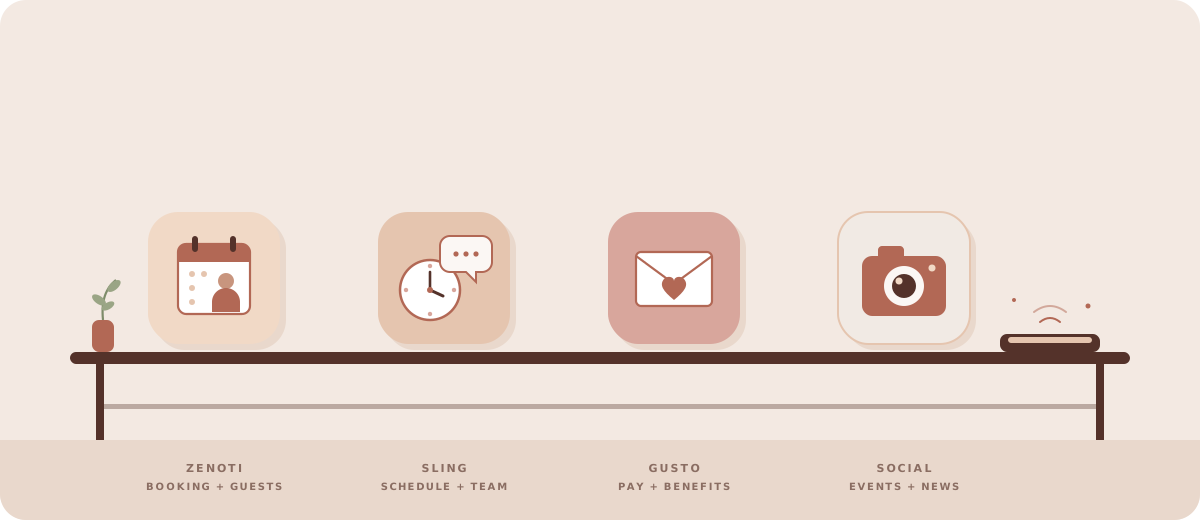
| Tool | What it is for |
|---|---|
| Zenoti | Booking and appointments, guest profiles, job cards and payments. |
| Sling | Your schedule, clocking in and out, time off requests, announcements and team messages. |
| Gusto | Payroll, pay stubs, W-2s and insurance information. |
| Social | PALOMA's Instagram and LinkedIn, for branded content, announcements and events. |
Zenoti is the guest. Sling is you. Gusto is your pay, and social is how PALOMA talks to the world. Download the mobile apps where they exist, so you have them during your shift. Which ones you need on day one depends on your role, and HR & Policies has that list.
Chapter two
Sling: your schedule and your team
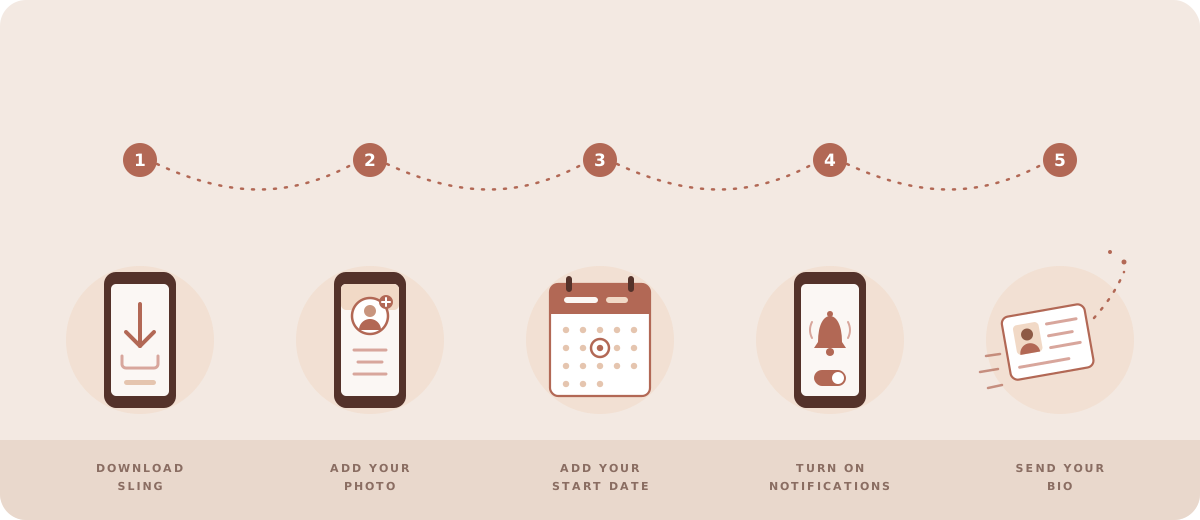
Sling is where your working life lives: your schedule, clocking in and out, time off, and the team. Start here, because these are the first five things to do.
Your first steps in Sling
- 1Download the Sling app on your phone.
- 2Add a professional photo to your profile.
- 3Add the month and year you started at PALOMA to your profile.
- 4Turn on push notifications.
- 5Send management a short bio and photo for the PALOMA Newsfeed page.
Your schedule
- Your next 30 days of shifts are in Sling.
- You can pick up open shifts posted by management. They are posted often.
- You can trade a shift with another associate. Let your manager know.
- The schedule updates in real time, so check it regularly.
Every shift and every break is clocked in Sling, and nowhere else.
Clock in and out for every shift and every break
- 1Clock in when you arrive, before your first appointment.
- 2Clock out for your break.If you forget, Sling adjusts for the scheduled break unless you add a note.
- 3Clock back in after your break.
- 4Clock out when your shift ends.
If you miss a clock in or out
- 1Add a note on that shift in Sling the same day.
- 2Tell your manager right away.
- 3Include the time you should have clocked in or out, and why.Missing entries without a note need manager follow-up and may affect your paycheck.
Planned time off
- Request it in Sling at least 4 weeks ahead, with your reason and dates.
- Management reviews requests. You will hear back within 48 hours.
- Some dates are rarely approved. See the Policies guide for blackout dates.
Calling off a shift
- 1Contact the GM and the manager on duty as soon as you can.
- 2Post a message in the "calling off" group in Sling.
- 3Try to find coverage if you can.
Sling is also how the team talks. Turn on notifications and check it daily, especially before your shift.
Announcements and messages
- Company announcements: events, policies and closures.
- Department channels for therapists, guides and specialists.
- One-to-one chats with managers and teammates.
- Celebration posts for birthdays, work anniversaries and team wins.
- Turn on notifications and check Sling daily, especially before your shift.
Chapter three
Zenoti: booking and guests
If Sling is you, Zenoti is the guest: where she books, and where you manage appointments, read her profile, take payment and keep the record of every visit. It will be the screen in front of you most of the day.
Getting started
- 1Download the Zenoti app on your phone.
- 2Log in with the PALOMA credentials management gives you.
- 3Get to know the main dashboard. It is your home base.
- 4Watch the Zenoti training videos in Zenoti's learning center.Your manager will give you the required list.
Reading the appointment book
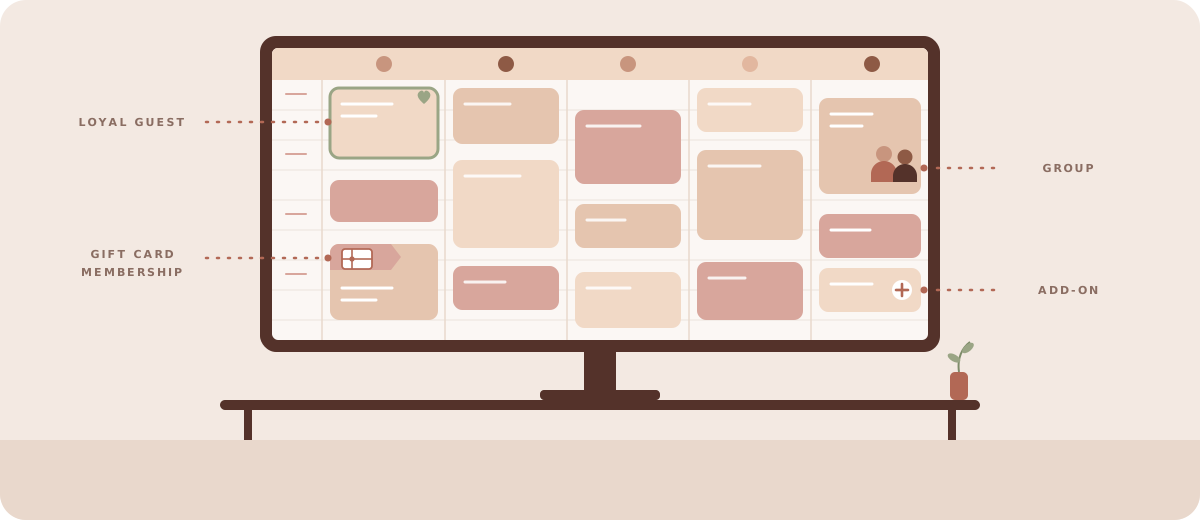
The appointment book is your home base, and it speaks in colour.
Reading the appointment book
- Each service type has its own color, such as massage, facial or sauna. Icons show the specialty.
- Green bars mark a loyal guest. Protect these appointments first during call-offs.
- Pink bars mark guest status, such as a gift card balance or membership.
- Icons show group appointments, add-ons and enhancements.
Viewing a job card
- 1Right-click the appointment and choose Print.
- 2Cancel out of printing.
- 3The job card is now on screen, with the guest's preferences, notes and service details.
What a guest profile shows
- Appointment history, past and future.
- Product purchase history, useful for recommendations and gifting.
- Appointment notes from prior services, such as pressure and modalities.
- Pop-up notes for allergies, red flags or important requests.
- Transition services, when a guest has treatments back to back and may need a robe or bag.
- Group appointments, marked with the group icon. These may carry setup or group notes.
Her visit, in Zenoti
A visit has a beginning and an end in Zenoti, and both are moments with a guest in front of you.
Intake forms
- Massage, facials, body treatments, infrared sauna and lymphatic services need a form. Check the appointment in Zenoti.
- Look for the form icon on the appointment.
- If a form is not finished, ask the guest to complete it before check-in.
Checking a guest in and out
- 1Confirm intake forms are complete, answer questions, and check the spelling of their name and phone number.
- 2Click Check In once forms are done and the guest is ready for the treatment room.
- 3After the service, take payment by cash, card, gift card or package.
- 4Ask how they would like to tip, on the card or separately, and log cash tips.
- 5Ask if they would like to book their next visit.Take your time here. It is the last moment of their visit.
When a guest shares a concern
When something wasn't right, Zenoti is where it's written down, in her words, so the manager can follow up.
When a guest shares a concern
- 1Open the guest profile and add a note with the date.
- 2Write the guest's exact words, your response and any resolution offered.For example: therapist was late, pressure too deep, room was cold.
- 3Management reviews these notes and follows up with the guest and team.“Thank you for letting me know. Your feedback helps us improve. I'm going to note this and make sure our manager follows up with you.”
What you can offer, and what only a manager can:
Chapter four
Your Zenoti checklist
Zenoti has a lot in it, and nobody learns it from a page. Your manager will give you the Zenoti checklist: the required training videos in Zenoti's learning center, and each part of the appointment book, the checkout screen and guest profiles to work through with your trainer. Check each one off as you feel confident.
If you haven't been given your checklist by your first Zenoti shift, ask your manager for it.
Chapter five
Gusto: pay and benefits
Gusto holds your pay stubs, W-2s, insurance and benefits information. Download the Gusto app so you can reach it anytime.
| What | Where or how |
|---|---|
| Past pay stubs | The More tab in Gusto. |
| W-2s | Digital, in Gusto. No paper. |
| Pay cycle | Saturday to Friday. Payday is every other Friday. |
| Credit card tips | Added to your paycheck automatically. |
| Cash tips | Pick them up at the front desk at the end of your shift, log the amount and initial it. |
| Insurance | Medical, dental and vision plan details, and what PALOMA contributes. |
| Tax documents | All in one place in Gusto. |
On payday
- 1Check you were paid correctly against the hours you worked.
- 2Review your gross pay, deductions and net amount.
- 3If something looks off, tell management right away.
- 4For payroll questions, message your manager in Sling.
Chapter six
PALOMA on social
PALOMA's Instagram and LinkedIn are where we share our mission, announce events, highlight the team and connect with the community.
What you can do
- View and share PALOMA content from Instagram and LinkedIn.
- Submit ideas for announcements or highlights.
- Ask to be featured with photos, testimonials or stories.
- Tag PALOMA in your own posts about your PALOMA experience, with permission.
- See private event announcements and gift requests.
Guidelines
- Never post on PALOMA's behalf without manager approval.
- Represent the brand authentically and professionally.
- Never share confidential information or guest details.
- For features or content ideas, reach out to management.
- Use PALOMA's hashtags only when sharing official content.
Quick reference
And all four, on one card:
| Tool | App? | What it is for | Clock in here? |
|---|---|---|---|
| Zenoti | Yes | Booking, appointments, guest profiles, intake forms, payments | No |
| Sling | Yes | Schedule, clock in and out, time off, announcements, messages, shift trades | Yes |
| Gusto | Yes | Pay stubs, W-2s, insurance, benefits, tax documents | No |
| Social | No (web) | Announcements, events, content, team highlights | No |